

This Tech Talk is a short product tour of Tidal Saver (Save On Clouds) and how it helps identify cloud cost savings.
What you will learn
- Understand how Tidal Saver (Save On Clouds) surfaces cost savings
- Navigate the product tour for cloud cost optimization
- Identify where Saver fits alongside assessment and migration work
Transcript
This short tour introduces Save On Clouds (Tidal Saver), Tidal’s cloud cost optimization product for AWS, Azure, and Google Cloud.
Connect cloud accounts
Start on the Cloud Accounts page. Connect your Amazon Web Services, Azure, and Google Cloud Platform accounts so Save On Clouds can see the resources you want to manage.
Review resources and schedules
Open Cloud Resources to see virtual machines across connected platforms. You can stop and start resources on demand from this view.
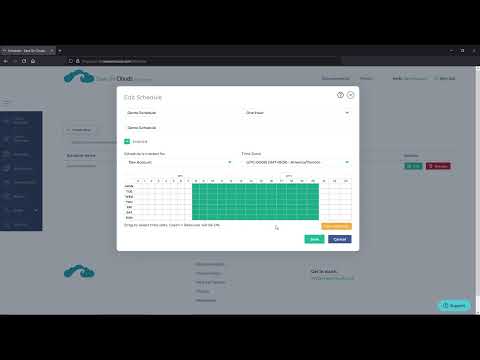
The larger savings usually come from schedules. On the Schedules page, define when a group of resources should run—for example, only during business hours. Choose the hours, set a time zone, and save. Return to Cloud Resources and assign resources to that schedule.
Alerts and savings reports
Connect Save On Clouds to your team’s notification channels so you receive alerts when instance state changes. On the Reports page, track how much the product is saving against your cloud spend.
Save On Clouds is free to try. Connect accounts, schedule non-production capacity, and measure savings on AWS, Azure, and Google Cloud Platform resources.