

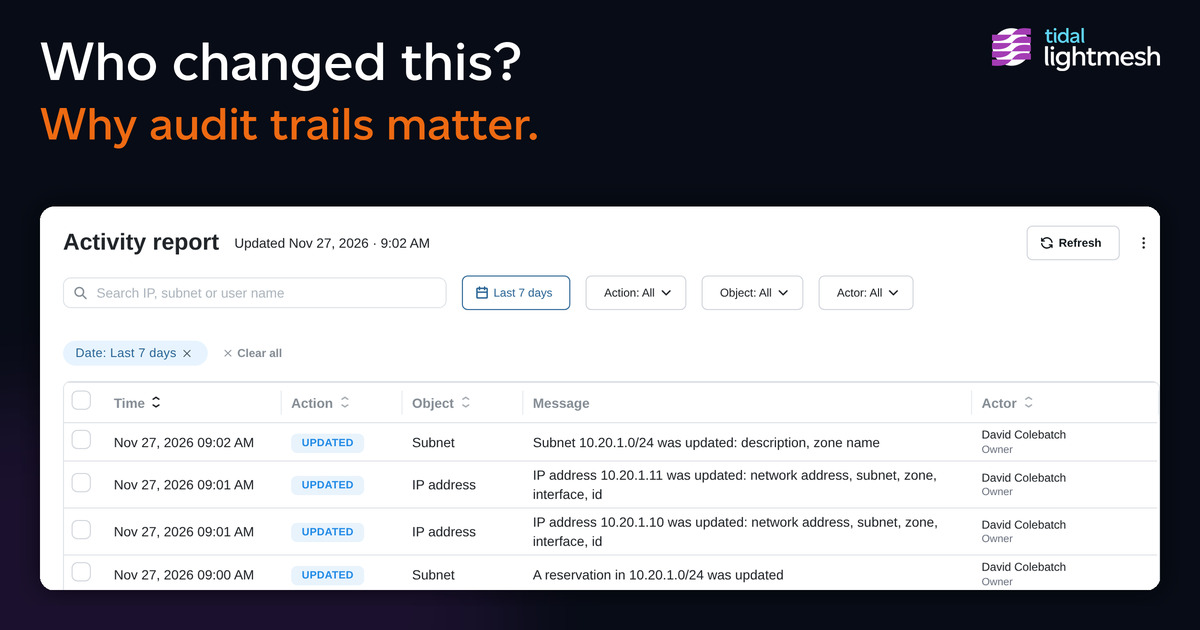
It’s 2 A.M., and Nobody Remembers Touching That Subnet
A security alert points to an unfamiliar IP address. You open the network record, but the current state does not explain how the address got there, or who changed it.
During an investigation, the current state is not enough. You need to know what changed, when it changed, and who made the change.
That is the security value of an IPAM audit trail. It gives you a timeline without forcing you to rebuild one from tickets, chat, and scripts. You start with the network record itself.
Start From the Record
The org-wide view is Reports > Activity Report. The page title is Activity report. Each row lists Time, Action, Object, Message, and Actor. Actor shows the person’s name and role, for example Owner. You can search with the box labeled Search IP, subnet or user name, and reload the table with Refresh.
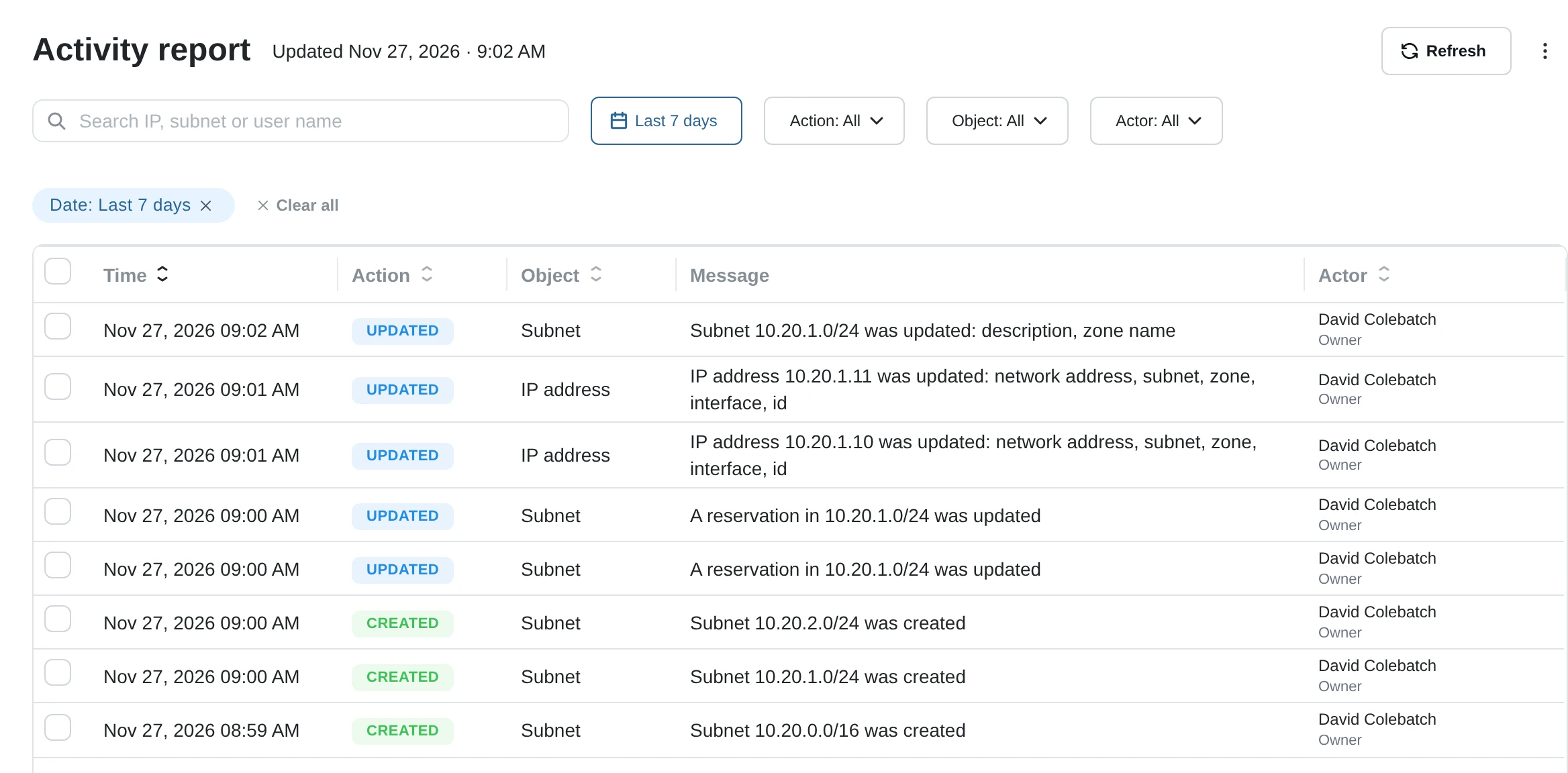
The Activity report under Reports, with columns for Time, Action, Object, Message, and Actor, plus a search box and Refresh.
To see history for one network record, go to Network > Subnets, open the subnet, and select the Activity tab. On 10.20.1.0/24 - HQ Users, the Activity card records entries such as “David Colebatch updated 10.20.1.0/24’s description from Demo: HQ Users to Demo: HQ user workstations VLAN,” with a full timestamp.
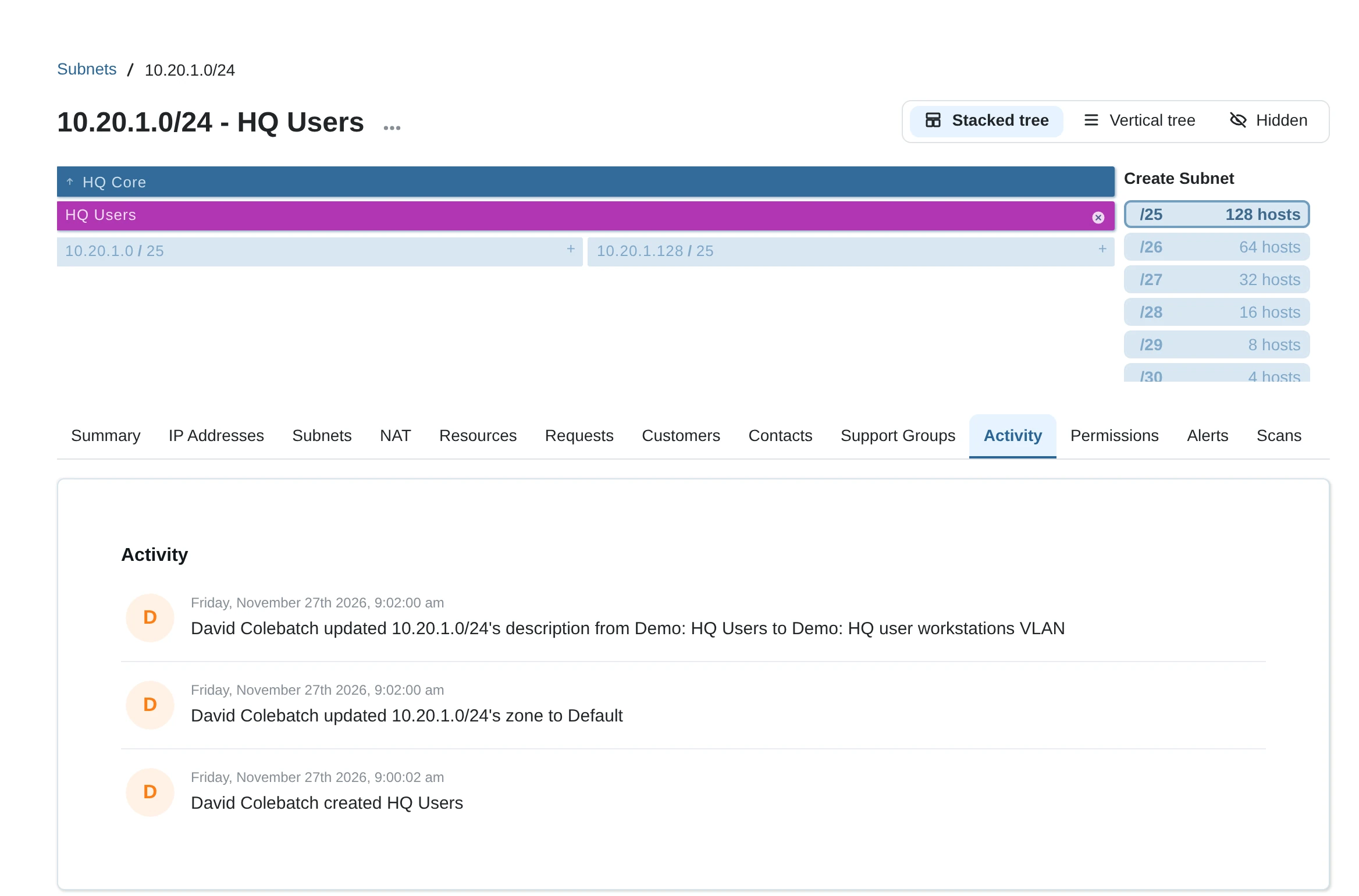
The Activity tab on subnet 10.20.1.0/24 - HQ Users, with before-and-after values in the Activity card.
The same history is available through the LightMesh GraphQL API when you need to investigate or report beyond a single screen.
Context You Can Act On
A useful audit trail does more than confirm that something changed. It helps you understand the change quickly enough to act on it.
The Activity report tells you which fields changed. A typical message reads “was updated: description, zone name.” The rows are not clickable, and there is no separate change-detail view. Before-and-after values appear only in that record’s Activity tab.

Before-and-after values appear in the subnet Activity tab. The Activity report lists the fields that changed, but does not open a separate detail view.
On the Activity report, you can narrow the trail with on-screen filters for Date (the default is Last 7 days), Action, Object, and Actor, plus Clear all. Action options are Archived, Assigned, Created, Deleted, Imported, Released, Reserved, Unassigned, and Updated.
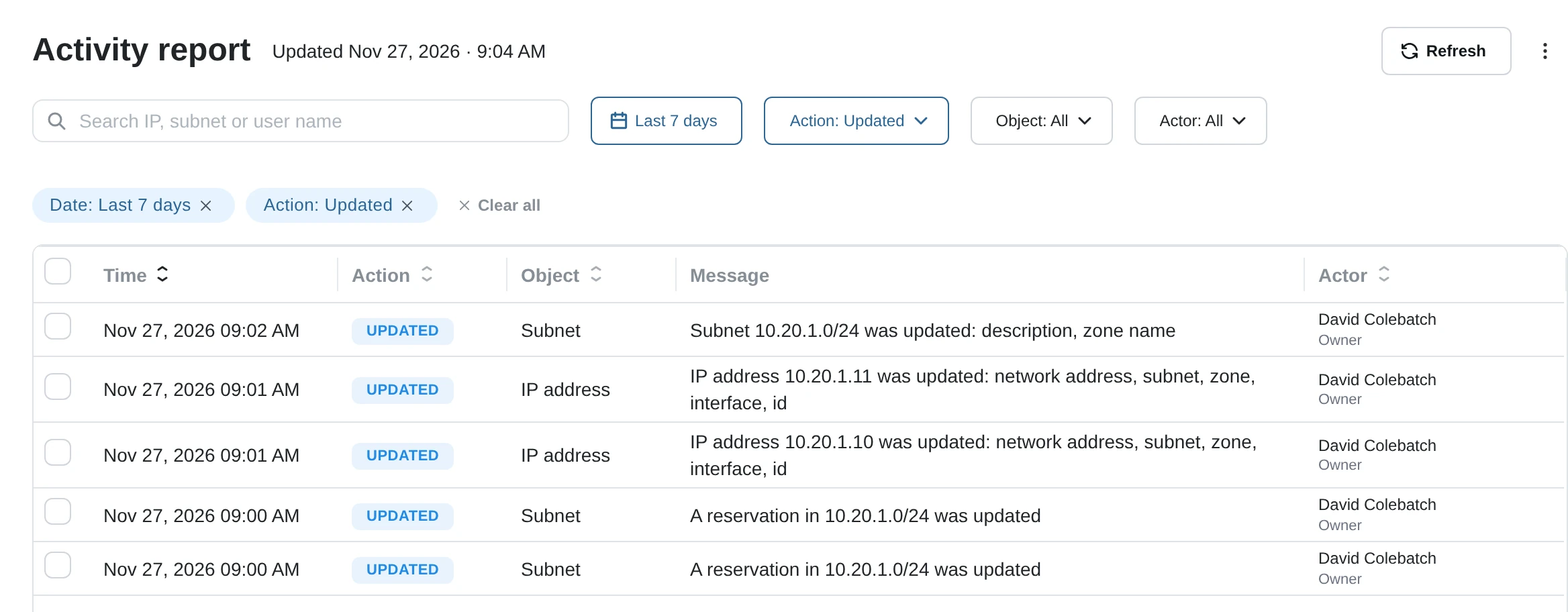
The Activity report filtered to Action: Updated, with Date, Action, Object, and Actor filters and Clear all.
That context also matters when many records change at once, such as during a maintenance window or an import. You can filter the Activity report to the matching Action and still see who was responsible.
When you query the same history through the GraphQL API, sensitive variables such as passwords, tokens, and API keys are redacted.
When the Question Is “Who Changed This?”
The value is clearest when a security question starts with that sentence.
You can use audit history to:
- Investigate unexpected subnet or IP assignment changes.
- Review changes made during a maintenance window, migration, or import.
- Provide change evidence for an internal security or compliance review.
Back to the 2 a.m. alert. Start with the Activity report, then narrow it by Date, Action, Object, or Actor, or search for the IP, subnet, or user name. Open the subnet’s Activity tab when you need the before-and-after values.
Audit history does not detect threats, and it does not guarantee compliance on its own. What it does give your security and operations teams is something they need during an investigation: reliable context about what happened.
How long that history stays available depends on your plan. Free and Pro keep 7 days of audit history, Team keeps 30 days, and Enterprise retention is set in the contract.
Make Network Changes Accountable
The next time someone asks “Who changed this?”, the answer should already be in your IPAM.
LightMesh gives you the change history and context to investigate faster, trace activity, and understand how your network reached its current state.
Start free with LightMesh. New accounts get 14 days of expanded access, then continue on the Free plan, which stays free forever for small networks under 1,000 IPs with 1 user.
For query examples and field-level detail, see the LightMesh audit logging guide.